Git submodules allow you to include one git repository inside another. This is commonly used to pull in shared libraries, frameworks, or other dependencies that live in their own repositories. GitForce detects, displays, and manages submodules directly within the main interface. A repository that contains submodules will have a .gitmodules file at its root. GitForce reads this file and shows each submodule in the left pane alongside the regular tracked files in all view modes. Even uninitialized submodules are visible so you can discover and initialize them right away. Submodules have their own set of icons to indicate their state at a glance.
Submodule Icons
Submodules appear in both the tree and list views with dedicated icons that reflect their current state:
- Submodule (closed/opened) – The submodule is initialized and its checked-out commit matches what the parent repository expects. Everything is in sync.
- Submodule (modified) – The submodule is initialized but points to a different commit than what the parent repository has recorded. This typically happens after pulling new changes in the submodule or checking out a different branch inside it.
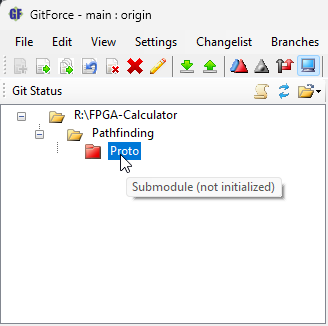
- Submodule (not initialized) – The
.gitmodulesfile references this submodule, but it has not yet been cloned locally. The submodule directory is empty or does not exist.
Hovering over a submodule node in the tree view shows a tooltip describing its state.
Initializing a Submodule
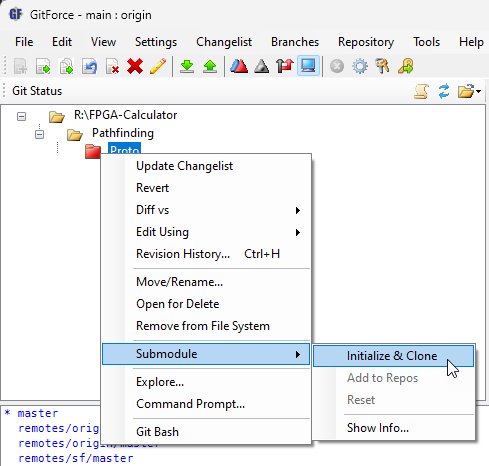
When you open a repository that references submodules for the first time, those submodules will appear with the “not initialized” icon. To initialize and clone a submodule:
- Right-click on the submodule entry in the left pane.
- In the context menu, select Submodule → Initialize & Clone.
GitForce runs git submodule update --init --force for that submodule path. Once complete, the submodule directory is populated with the repository contents and the icon changes to reflect the initialized state. The view refreshes automatically.
Working with Submodule Files
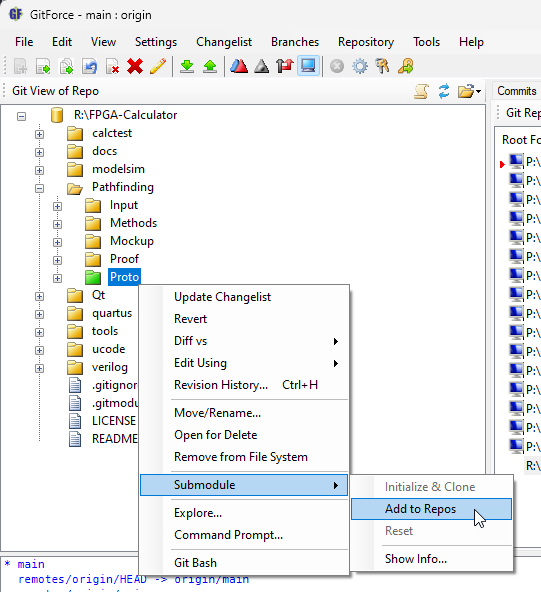
The parent repository view shows the submodule, but it does not track their files’ modifications. To work with the files inside a submodule (stage changes, view diffs, commit, etc.), you need to add it as a separate repository:
- Right-click on the initialized submodule in the left pane.
- Select Submodule → Add to Repos.
- Switch to the submodule repository in the Repos panel.
Once you switch to the submodule’s repository, you can work with its files exactly as you would with any other repository in GitForce: stage changes, view diffs, commit, browse revision history, and manage branches. root.
Submodule Context Menu
Right-clicking a submodule entry in the left pane shows a Submodule submenu with the following options:
- Initialize & Clone – Clone the submodule and check out the commit recorded in the parent repository. This option is only available when the submodule is not yet initialized.
- Add to Repos – Add the submodule as a separate repository entry in the GitForce Repos panel. This lets you switch to it as a standalone repository and manage its branches, remotes, and commits independently. This option is available only for initialized submodules that are not already in the Repos list.
- Reset – Reset the submodule to the commit recorded by the parent repository. This is useful when the submodule has diverged (shown by the modified icon) and you want to bring it back in sync. Available when the submodule status is modified or has a merge conflict.
- Show Info… – Open the Submodule Information dialog. Always available regardless of submodule state.
Submodule Information Dialog
The Show Info… option opens a dialog showing details about the selected submodule:
- Name – The submodule’s path relative to the parent repository root.
- Path – The full local path to the submodule directory.
- URL – The remote URL from which the submodule was cloned.
- Commit – The current SHA of the checked-out commit in the submodule.
- Status – The submodule’s current state: OK, Not initialized, Modified (different commit), or Merge conflict.
Each of the Path, URL, and Commit fields has a Copy button that copies the value to the clipboard.
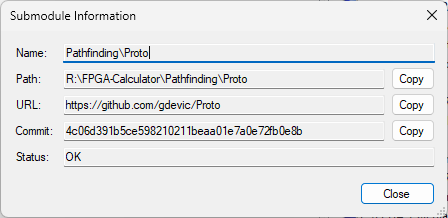
Scanning for Repositories with Submodules
When scanning for repositories (from the Repos panel), GitForce also detects initialized submodules within discovered repositories. If a repository contains a .gitmodules file, the scanner parses it and adds any initialized submodules to the list of found repositories. This way, a single scan can discover both parent repositories and their submodules. The scanner skips hidden directories (names starting with “.”) and system directories to avoid unnecessary traversal.
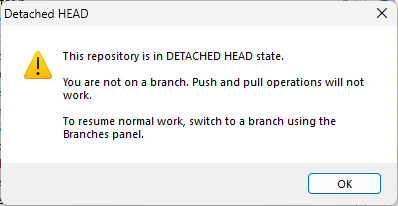
Detached HEAD Warning
Submodules are frequently in a detached HEAD state because git checks out a specific commit rather than a branch. When you switch to a repository that is in detached HEAD state, GitForce displays a warning dialog reminding you that push and pull operations will not work until you switch to a branch. This warning can be disabled in Edit → Settings → Options.